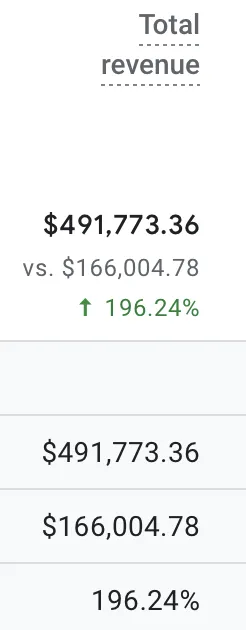
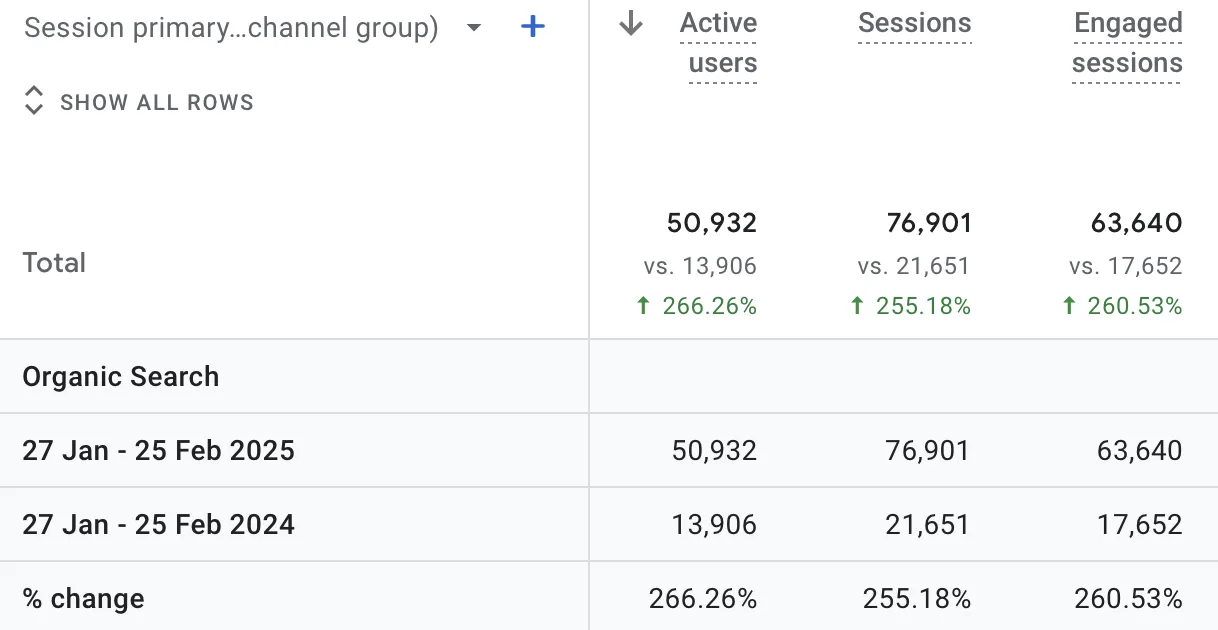
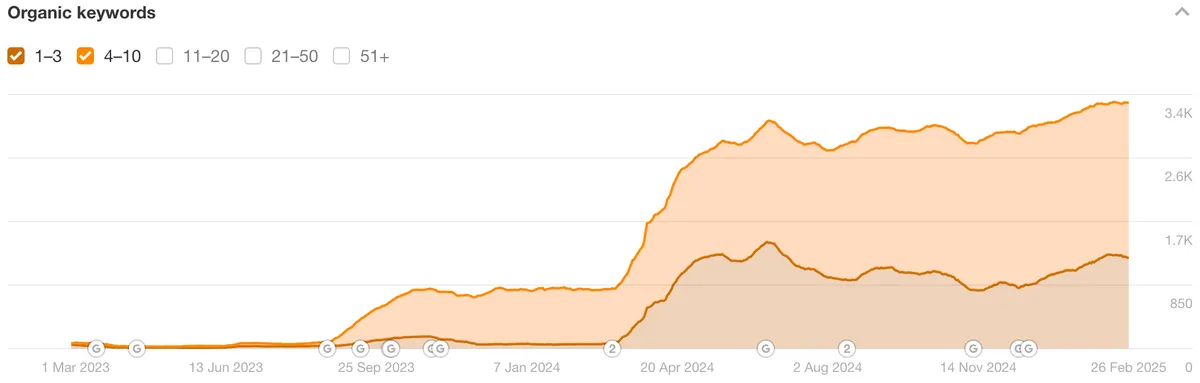
 The Objective
The goal of our campaign was to reverse stagnating SEO performance and recover trust in the channel after the client had previously invested heavily with little return. Additionally, their product pages weren’t ranking for critical commercial keywords, and their content strategy lacked the scalability necessary for growth.
The Website History
The client is an eCommerce company selling home furniture accessories, targeting the United States.
The Issues
Creating a successful SEO strategy began with identifying the core issues holding our client back. By diagnozing these weak points early, we built a targeted and scalable strategy that delivered real results.:
Here are the key problems we identified:
- Poor SEO performance: The client had invested tens of thousands with a previous agency but failed to rank for high-value product keywords, leaving them skeptical about SEO as a growth channel.
- Lack of scalable content strategy: The website lacked sufficient landing pages targeting commercial keywords, and its existing content wasn’t structured to support long-term growth.
- Low keyword visibility where it mattered: Key product and category pages weren’t ranking the commercial keywords that would drive conversions and revenue.
Course Of Action
To address the issues outlined above, we built an SEO campaign around three core pillars
- High-quality AI-generated content
- Automated metadata generation
- AI-powered outreach for backlinks
AI-Powered Approach to Content Creation
For content creation, we had to look for blog post opportunities that strengthen a website’s topical authority and value. Examining competitors is one effective way to discover missed opportunities.
Content Gap Analysis
Competitive analysis helped us identify missing keywords our client wasn’t ranking for, giving us ideas on what content pieces we should focus on.
To perform the analysis, we used Ahrefs, a tool that allowed us to compare our client to competitors. Here’s how you can do it:
- Go to Ahrefs’ Competitive Analysis.
- Enter your domain along with up to 10 competitor URLs.
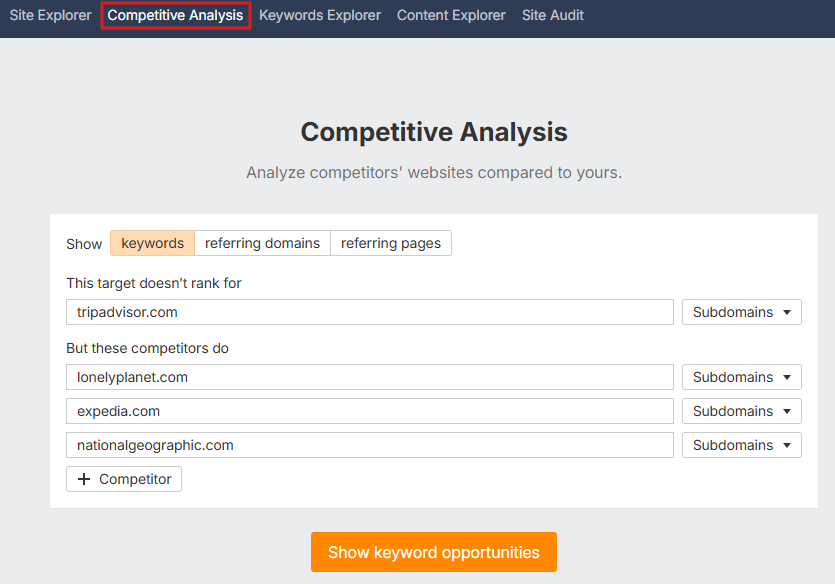
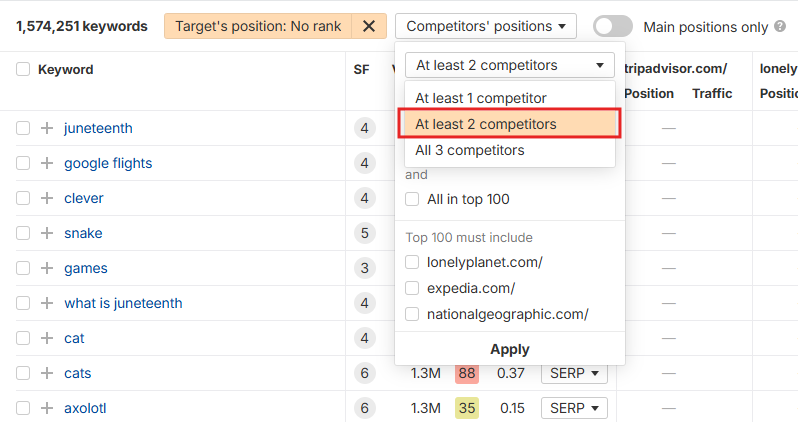
- Filter by “At least 2 competitors” to uncover keywords that multiple competitors are already ranking for.
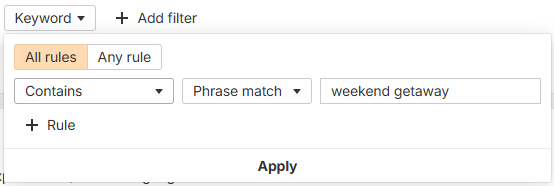
- Refine the results further by selecting phrase-match keywords to focus on more targeted and relevant search terms.
- Create a spreadsheet with the most relevant keywords to your site and brainstorm content topics tailored to each one.

Important note: Even after carefully filtering keywords, you may still end up with terms that are not relevant to your site.
What is E-E-A-T?
E-E-A-T stands for Experience, Expertise, Authoritativeness, and Trustworthiness, and it represents Google’s criteria for assessing content quality and website credibility.
Here’s a brief overview of each aspect of E-E-A-T:
- Experience – Demonstrates the firsthand experience of the content creator. For example, travel bloggers sharing insights from personal journeys showcase direct experience.
- Expertise – Reflects the depth of knowledge and specialised skillset the content creator has regarding a topic, indicating clear and reliable expertise.
- Authoritativeness – Indicates the recognition and credibility your site holds within its niche. Sites frequently cited by authoritative sources generally score higher in authoritativeness.
- Trustworthiness – Crucial in sensitive content areas (known as YMYL, or 'Your Money or Your Life,' categories), trustworthiness refers to the accuracy, honesty, and reliability of your content.
E-E-A-T is particularly critical in sectors such as finance, health, and safety - areas where users rely heavily on accurate and credible content to make informed decisions.
Connecting Google Sheets to Make.com
Before we begin the content creation process, you need to set up two tools: Make.com and OpenAI.
For Make.com, it’s enough to create a free or pro account – both plans allow you to integrate Google Sheets, Google Docs, and other apps. With Make.com, you will be able to create a reusable automated workflow.
For OpenAI, you will require an updated plan: plus or pro, as only those subscriptions allow you to use the API.
Once both tools are up and running, follow these steps:
- Go to Make.com and create a new Scenario.

- Give it a name (e.g., “Content System”).

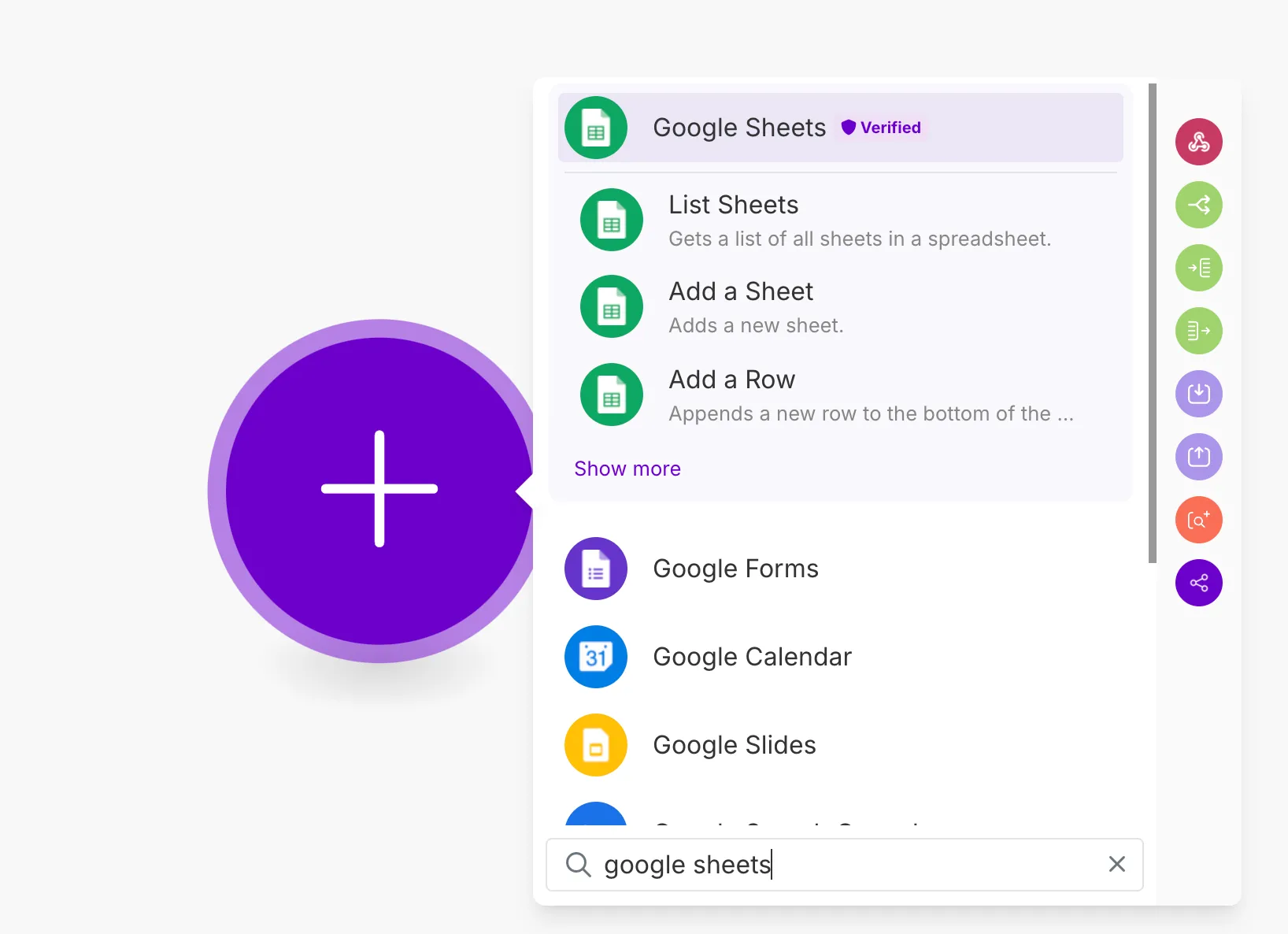
- Integrate Google Sheets to Make.com by clicking on the Plus sign and choosing the app.
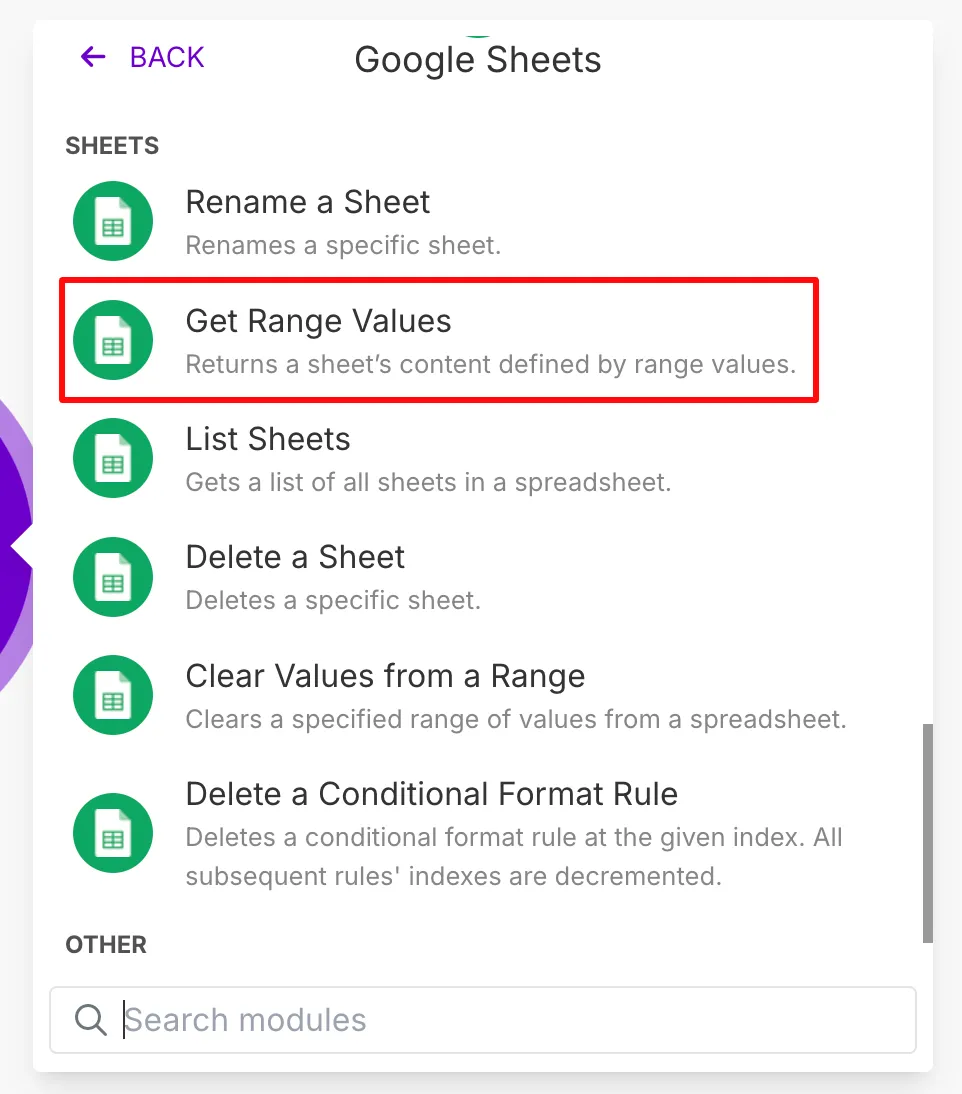
- Select “Get Ranged Values” for the tool to access the information required to generate the metadata.
- Confirm the connection by clicking on the “Add” button, then follow the steps to sign in with Google.
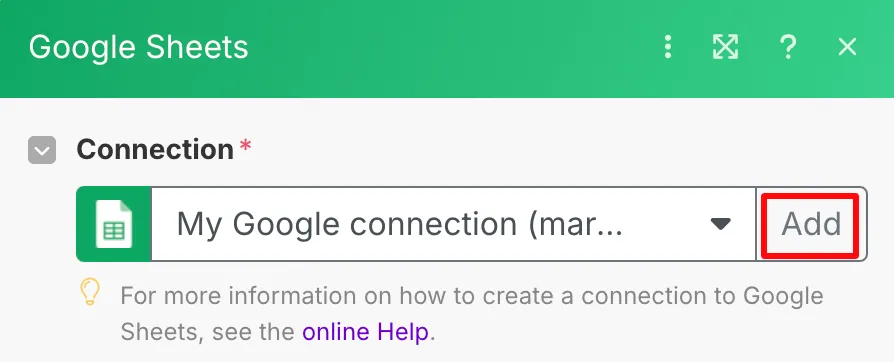
Integrating Google Sheets to Make.com checklist:
- Search method is set to “Search by Path.”
- Drive is set to “My Drive.”
- Spreadsheet ID is set to your saved sheet in Google Drive.
- The sheet name is set to Content (or anything else to help you identify your saved sheet).
With that part of the setup complete, here's what to do next:
- Set the Range in Make.com according to the cells in your spreadsheet.

- Tick “Yes” for “Table contains headers” and provide the range for headers.

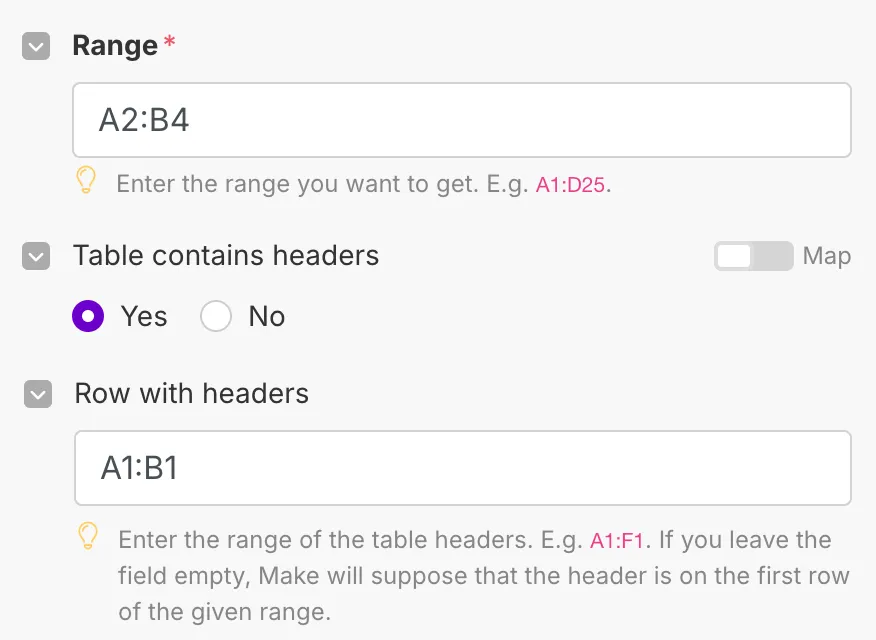
- Click on “Save”. Now your spreadsheet is connected to Make.com.
Creating Your Content System with ChatGPT (OpenAI)
After integrating Google Sheets into your scenario in Make.com, your next step is to add a new module for OpenAI. OpenAI will be connected to ChatGPT, which, in turn, will be responsible for generating your content pieces.
Follow these steps:
- Click “Add another module“ and search for OpenAI.
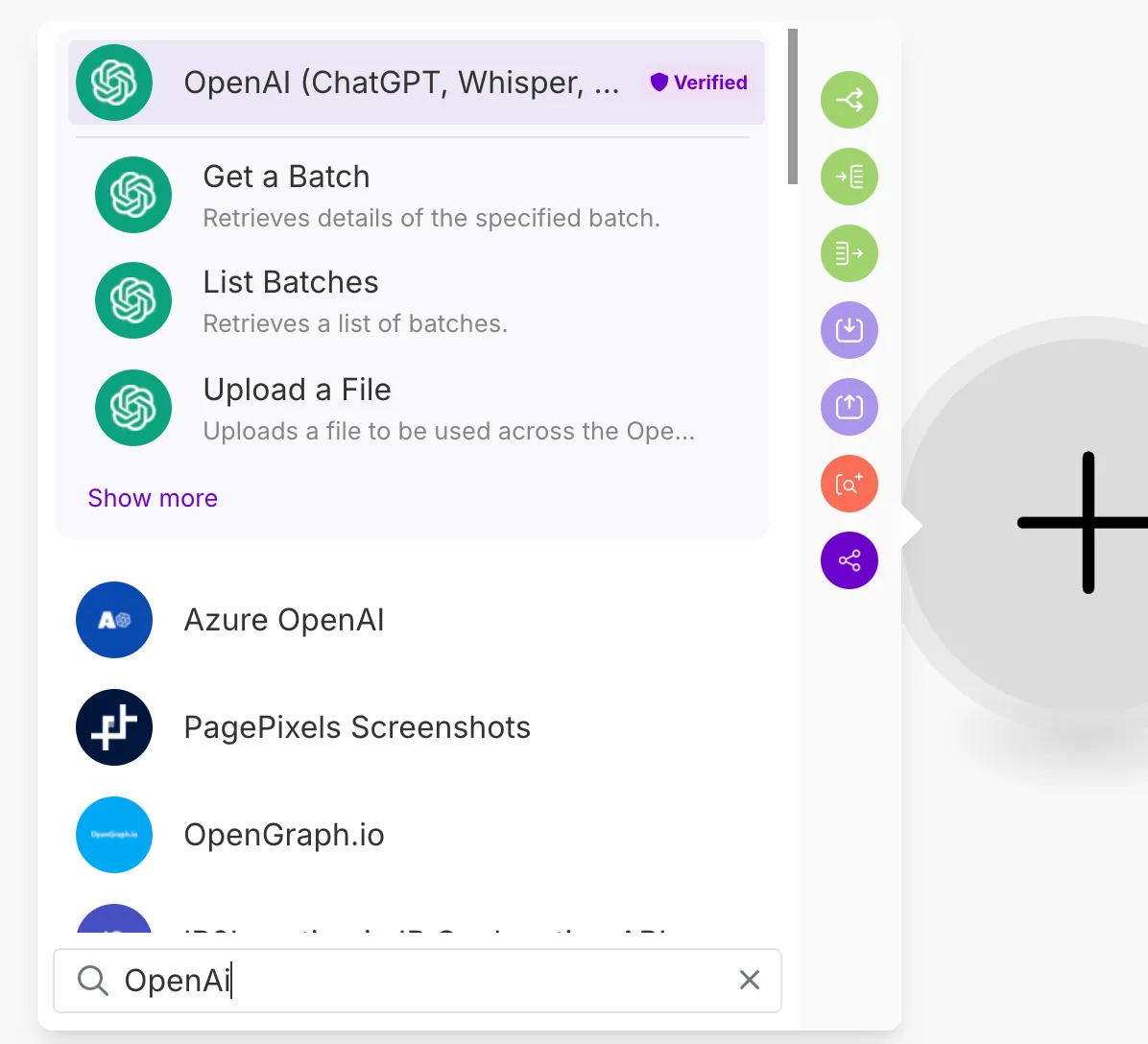
- Choose “Message and Assistant“ as this function will allow you to provide ChatGPT with a prompt.
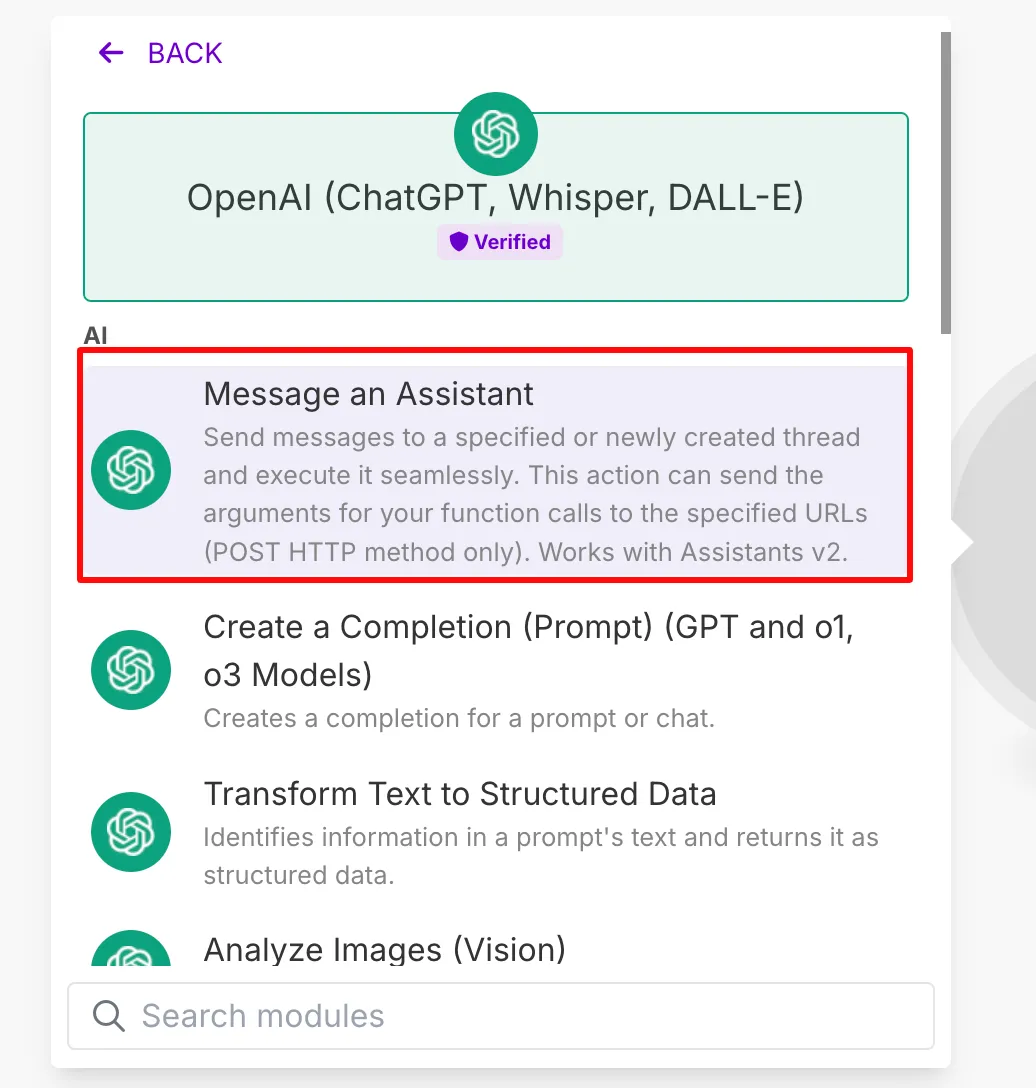
- Create an API key to connect your OpenAI account with Make.com. Use this page to create a new API key.
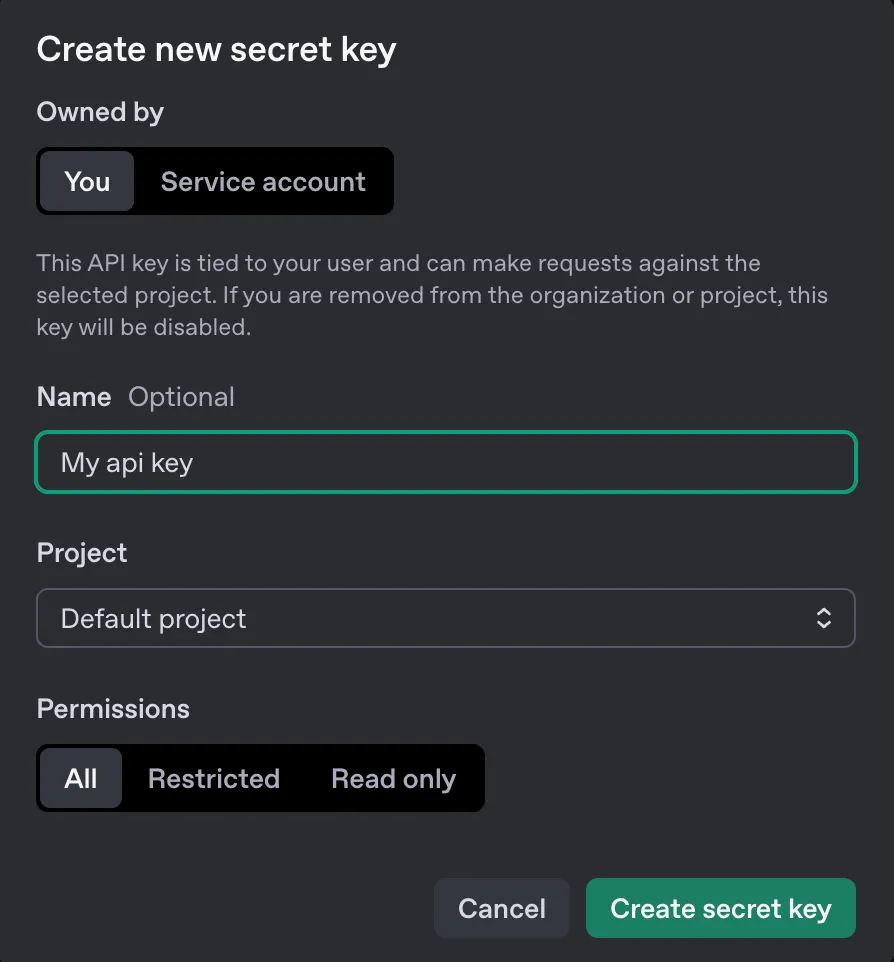
- Copy your secret API key and paste it into the respective field in Make.com.
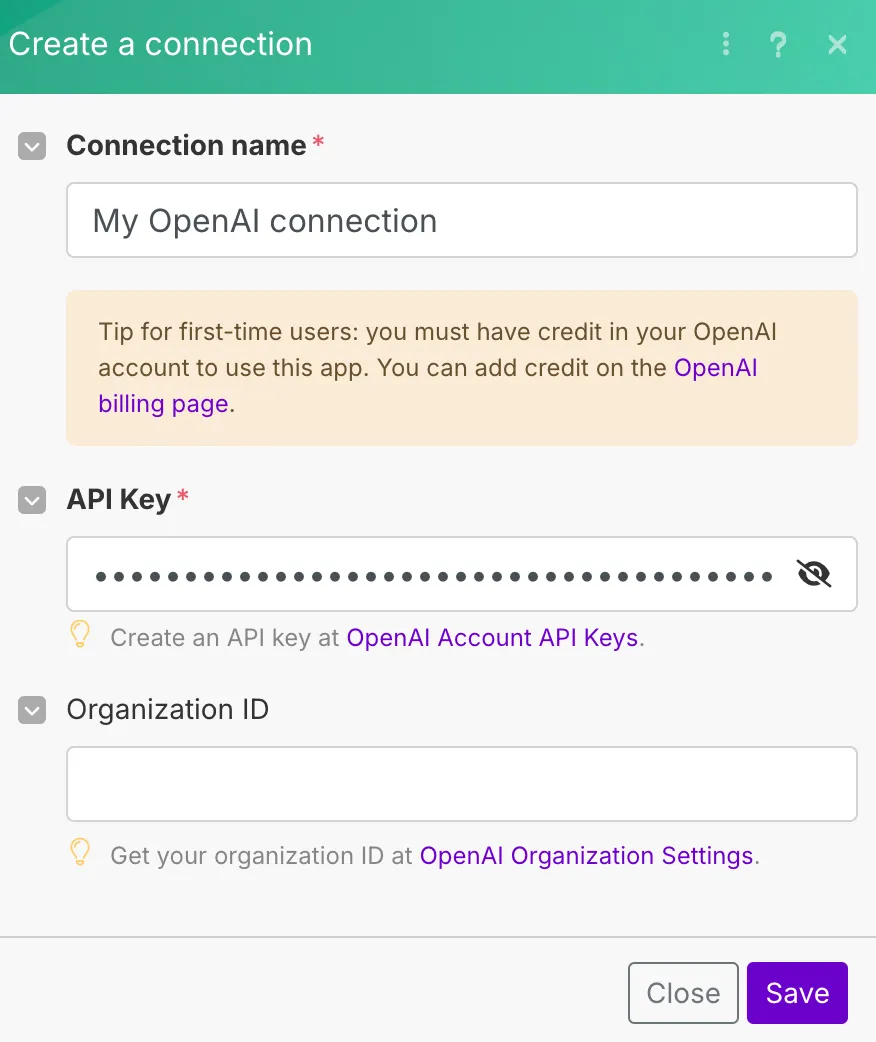
- In the “Assistant“ field, find and select the ‘gpt-4o Assistant (gpt-4o).’
- Keep the “Role“ set to “User.“
- The “Message“ field is where you will add your comprehensive prompt to generate content pieces.
Important note: Make sure to adapt your prompt according to the needs of your content pieces.
Example of a prompt: Travel Content Outline Brief
Topic: [Insert Topic from Google Sheets]
Target Keywords: [Insert Keywords from Google Sheets]
An outline should include:
- Brief introduction of the destination(s) or topic.
- The appeal—scenic views, hidden gems, ease of travel, or quick escapes from major cities.
- A specific audience (e.g., couples, busy professionals, families).
Introduction (1–2 short paragraphs):
- Hook the reader with a relatable travel problem or desire.
- Highlight what makes this specific guide useful.
- Mention who the post is for.
Main Content (Format depending on topic):
- If it’s a listicle (e.g., “10 Best Weekend Getaways”):
For each destination:
- Destination Name + Subheading (City, State, or Country)
- Why it’s great for a weekend trip
- Key attractions or things to do
- Ideal traveler type
- Travel time and best time to visit
Summary
- Quick recap of the top recommendations.
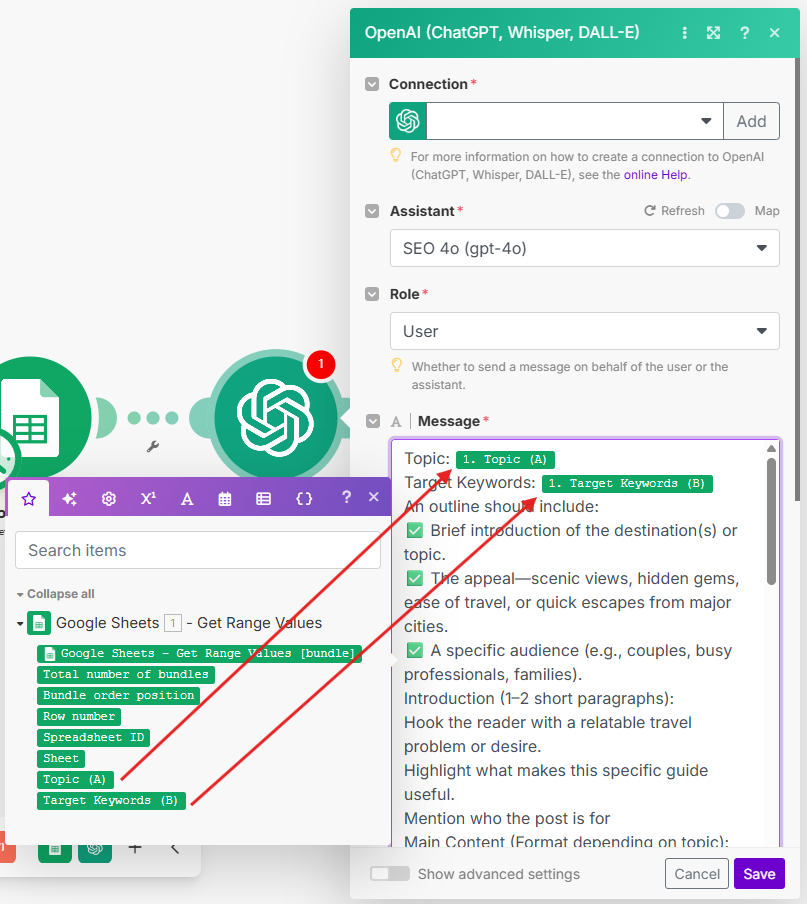
- Click on “Save” and right-click on the module to rename it to “Outline.” This way, it will be easier for you to keep track of your steps, as one scenario can contain multiple modules.
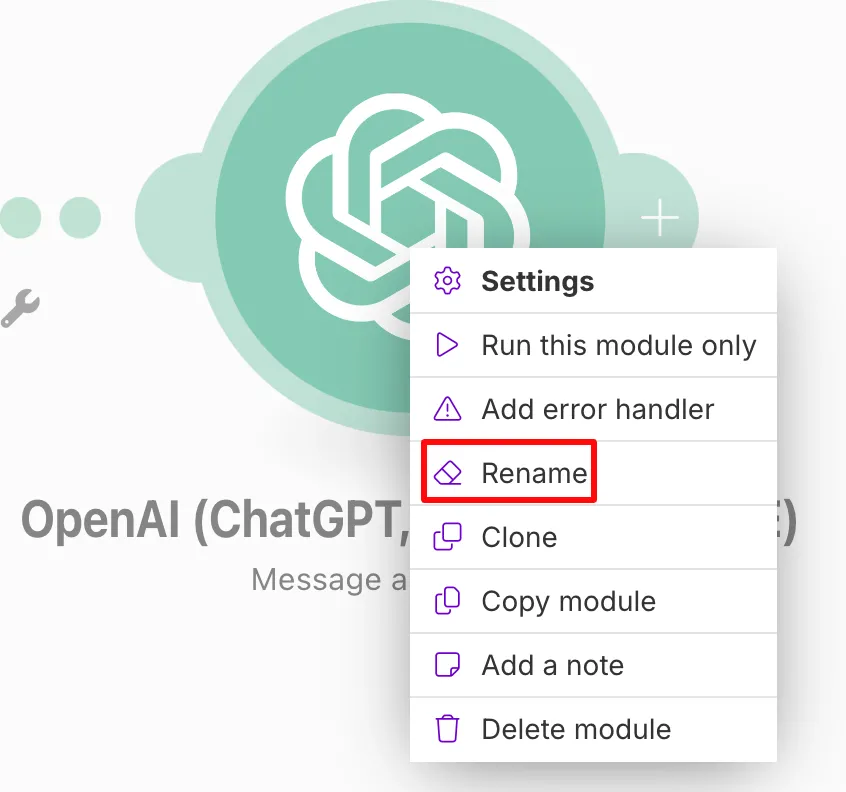
- Clone the same OpenAI module by right-clicking on it. Rename it to “Content Generator.”
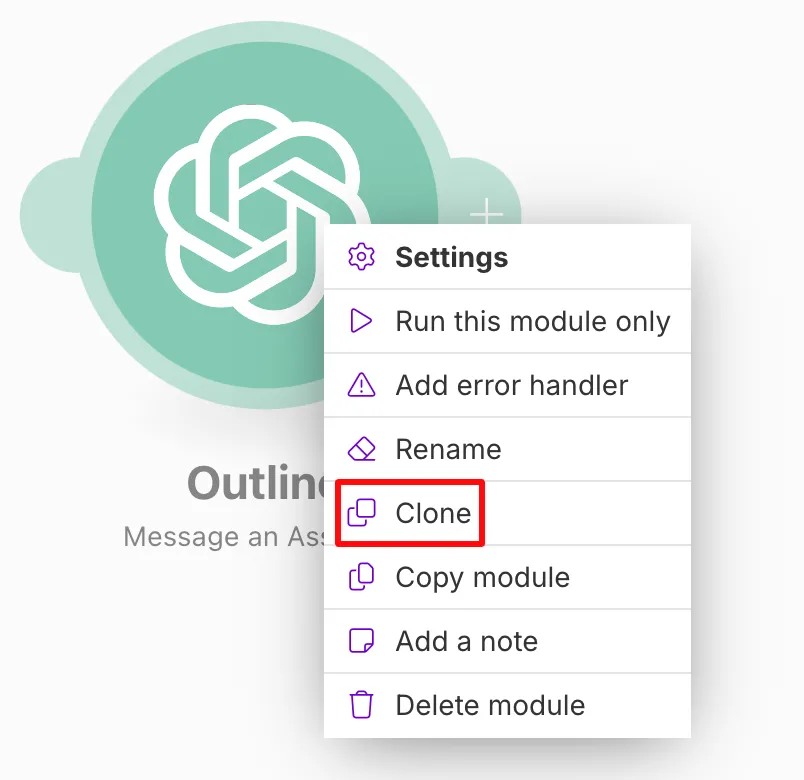
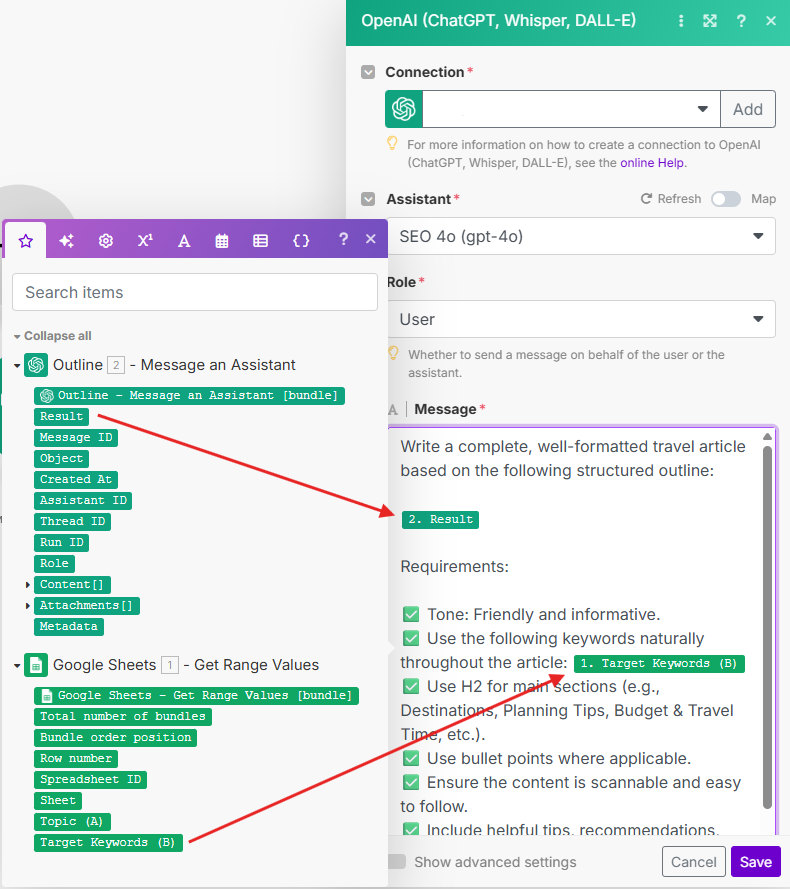
- Open the new module and replace the message with a different prompt.
The second module will expand the outline from the first module into a fully written piece of content.
Example Prompt
Write a complete, well-formatted travel article based on the following structured outline:
[Insert AI-Generated Outline from Outline Module]
Requirements:
- Tone: Friendly and informative.
- Use the following keywords naturally throughout the article: [Insert Target Keywords from Sheet].
- Use H2 for main sections (e.g., Destinations, Planning Tips, Budget & Travel Time, etc.).
- Use bullet points where applicable.
- Ensure the content is scannable and easy to follow.
- Include helpful tips, recommendations, and personalization for different traveler types.
Formatting Example:
Destination/Article Title
Ideal For: [Audience]
Trip Length: [# of Days]
Budget Range: [$–$$$]
Travel Time: [X Hours from Major City]
Destination 1
- Quick overview (what it’s known for, why visit)
- Best time to go
Where to Stay
- Hotel or Airbnb 1
- Hotel or Airbnb 2
What to Do
- Activity 1
- Activity 2
- Activity 3
Tips for Weekend Getaways
- Travel timing tip
- Booking/planning tip
- Packing/prep tip
Packing List
- Item 1
- Item 2
- Item 3
- Save the changes and add a new module.
Saving the Output to Google Docs
- The final module will integrate Google Docs.
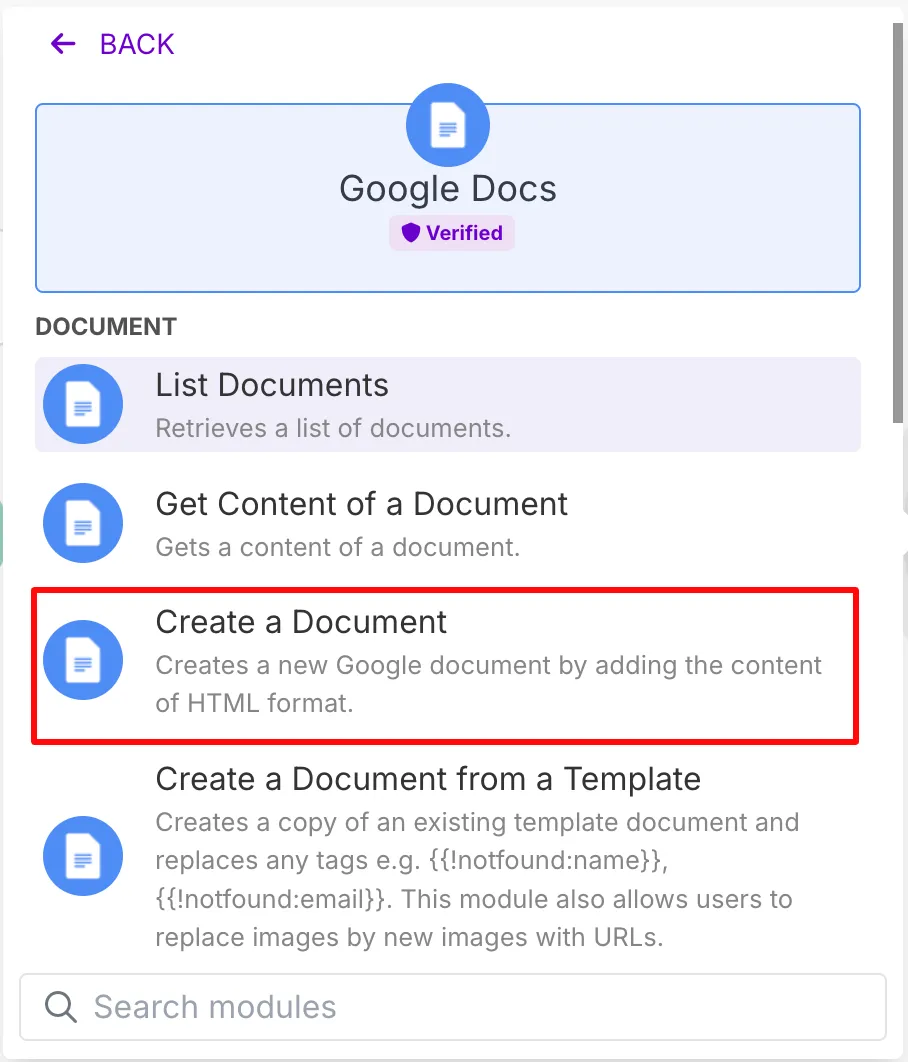
- Link “Name” with “Topic” (from the sheet) and “Content” with “Result” (from the Content Generator OpenAI module)
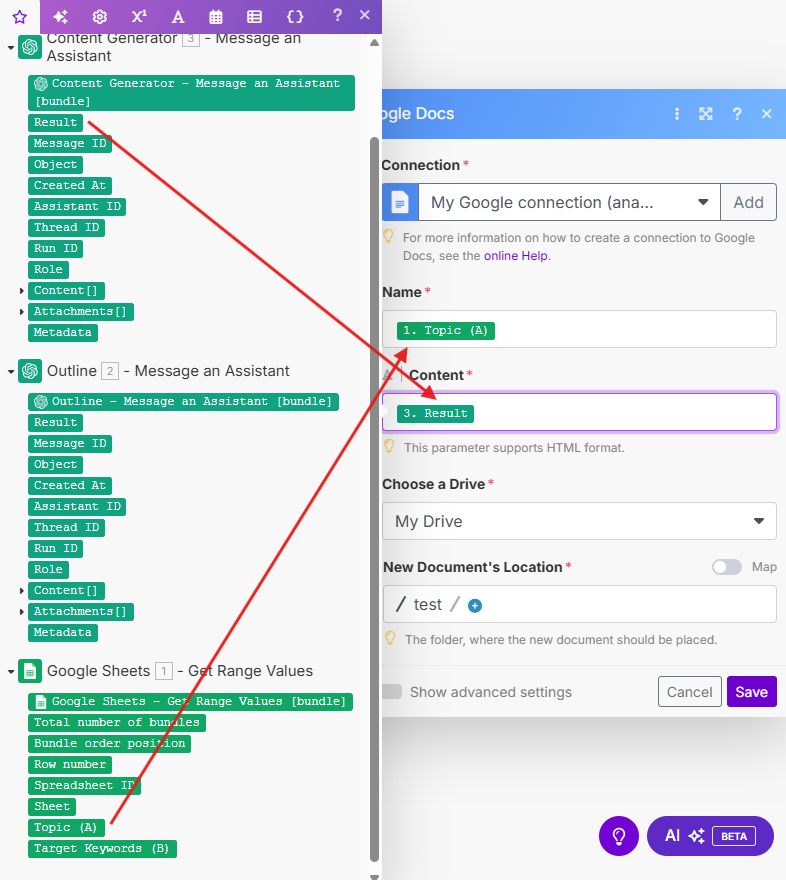
- Select the location where to store generated articles and click on “Save.”
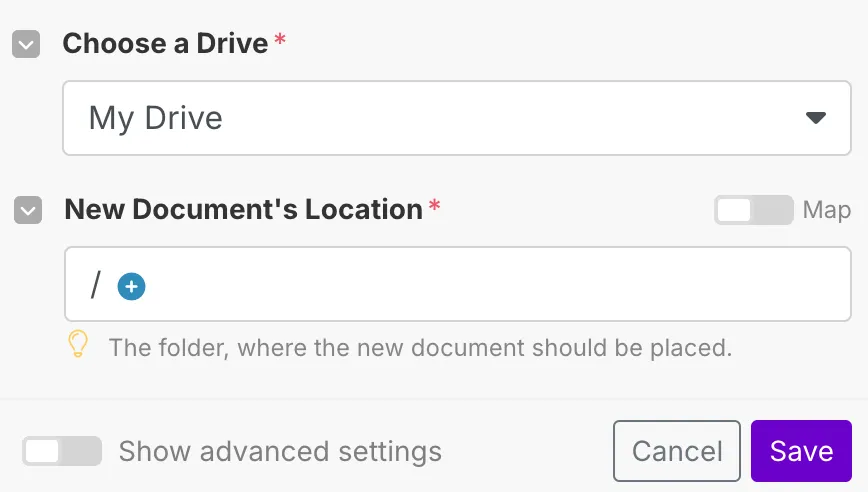
- Activate the Scenario by hitting “Run once.”

- Wait for Google Docs to appear in your Drive.
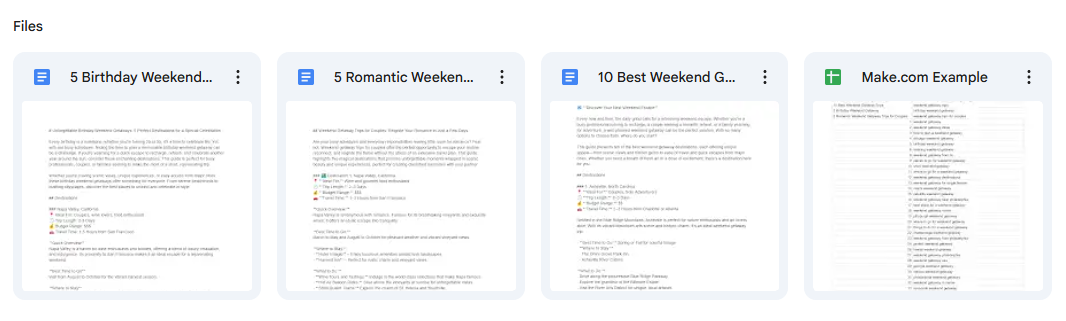
- Here is an example of the content:
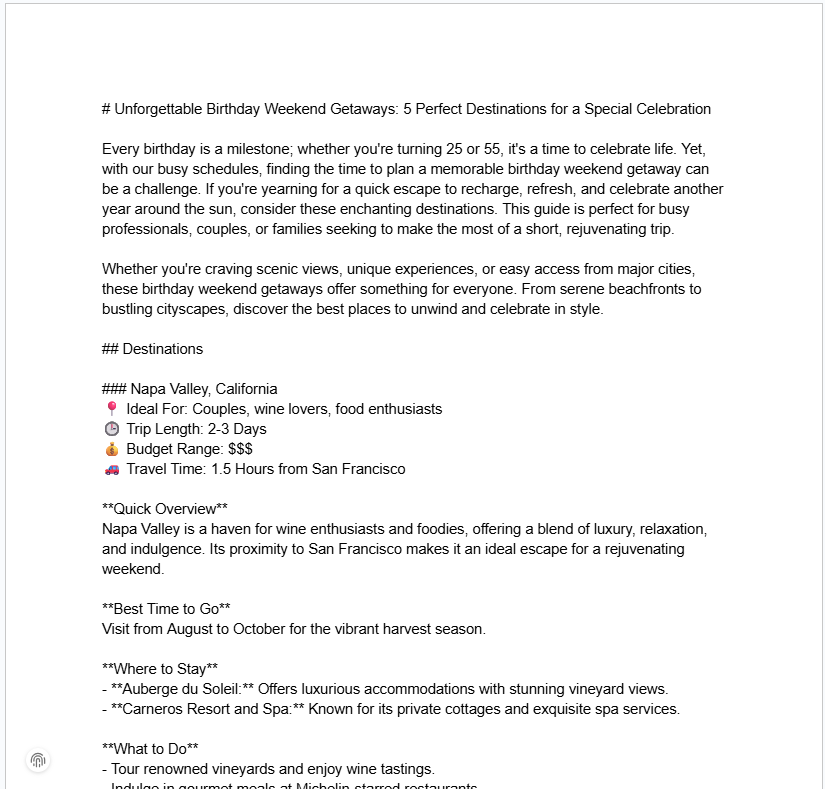
Tip: If the results aren't quite right, tweak your prompts to better guide the output—small adjustments can lead to big improvements.
Automated Metadata Generation
Once all content pieces were created, edited, and finalized, we moved on to optimizing metadata like page titles, H1 headings, and meta descriptions.
While often overlooked, metadata plays a crucial role in helping Google understand a page’s relevance to specific keywords, directly influencing search visibility.
Our client had numerous pages missing metadata, which is a common issue that can hurt SEO performance. If your site faces the same problem, here’s a time-saving solution to avoid hours of manual work:
Access the following tools:
- Make.com - Free or paid account
- OpenAI - Plus or pro subscription
- Google Sheet - Create a spreadsheet with 5 columns, each dedicated to a specific metadata field:

Save time and use our Google Sheet template.
Connect Your Google Sheet
Similar to linking Google Sheets with OpenAI and Google Docs to generate content pieces, we will repeat the slight change process for metadata.
- Log in to Make.com and create a new Scenario (optionally, name it “Metadata Generator“).
- Find Google Sheets and select “Get Ranged Values.”
- Connect your Google account by adding a connection.
- Ensure to link the “Spreadsheet ID” to a file you’ve previously created for generating metadata.
- For the “Range,” select column A and column B without table headers (e.g., A2:B5).
- Select “Yes” for the table containing headers and enter the range (e.g., A1:E1).
- Hit “Save.”
Create Your ChatGPT Metadata Generators
After setting up Google Sheets, your next step is to integrate a new module with the OpenAI app. Here are the steps to make:
- Add another module to your Scenario and search for OpenAI.
- Select “Message an Assistant” and connect your OpenAI account by creating a secret key if you haven’t done it yet.
- Select “Message an Assistant” and connect your OpenAI account by creating a secret key if you haven’t done it yet.
- Select an “Assistant.” We recommend choosing “gpt-4o.”
- Keep the “Role“ as User.
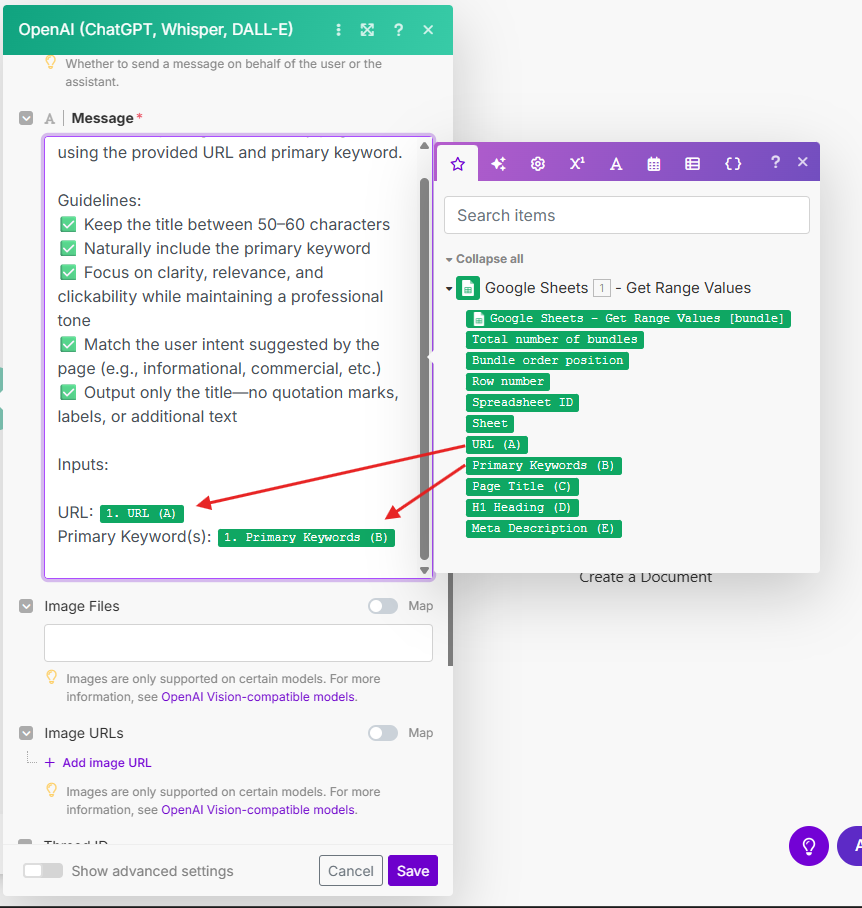
- Add your prompt to the “Message“ as an example shown below:
Create a compelling, SEO-friendly page title using the provided URL and primary keyword.
Guidelines:
- Keep the title between 50–60 characters
- Naturally include the primary keyword
- Focus on clarity, relevance, and clickability while maintaining a professional tone
- Match the user intent suggested by the page (e.g., informational, commercial, etc.)
- Output only the title—no quotation marks, labels, or additional text
Inputs:
- URL: [Insert URL]
- Primary Keyword(s): [Insert Keywords]
- Save the settings and rename the module to “Page Title GPT.”
- Clone the module and rename it to “H1 Heading GPT.”
You can provide the new module with page titles generated by the previous module. This way, the “H1 Heading GPT” will reference the page titles as input.
- Replace the old prompt with a new one:
Write a concise, SEO-friendly H1 heading based on the provided URL, primary keyword, and page title.
Guidelines:
- Keep the heading under 70 characters
- Naturally incorporate the primary keyword
- Ensure it aligns with the page’s intent (e.g., informational, commercial)
- Make it relevant, clear, and engaging as an introduction to the content
- Output only the heading—no quotation marks, labels, or additional text
Inputs:
- URL: [Insert URL]
- Primary Keyword(s): [Insert Keywords]
- Page Title: [Insert Page Title]
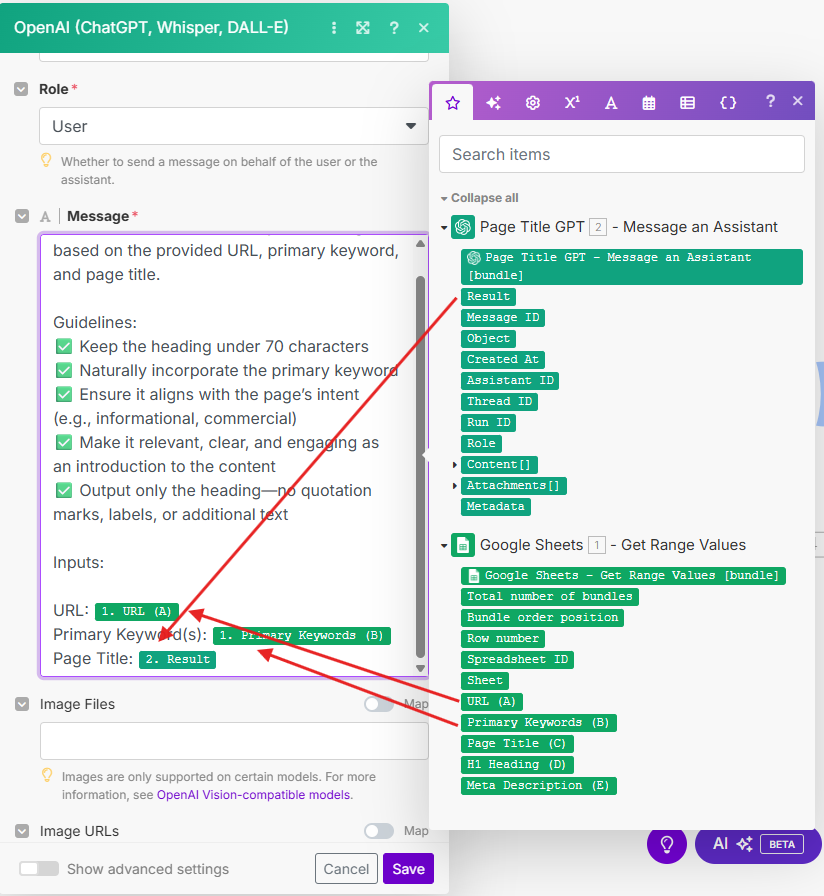
- Save the settings and clone the module again. Rename it to “Meta Descriptions GPT.”
- Replace the existing message with the following prompt:
Write a compelling, SEO-friendly meta description using the provided URL, primary keyword, page title, and H1 heading.
Guidelines:
- Keep the description between 150–160 characters
- Naturally include the primary keyword, along with 1–2 relevant secondary keywords
- Make it engaging and benefit-focused to encourage clicks
- Highlight unique selling points or value to the reader
- Output only the meta description—no quotation marks, labels, or extra text
Inputs:
- URL: [Insert URL]
- Primary Keyword(s): [Insert Keywords]
- Page Title: [Insert Page Title]
- H1 Heading: [Insert H1 Heading]
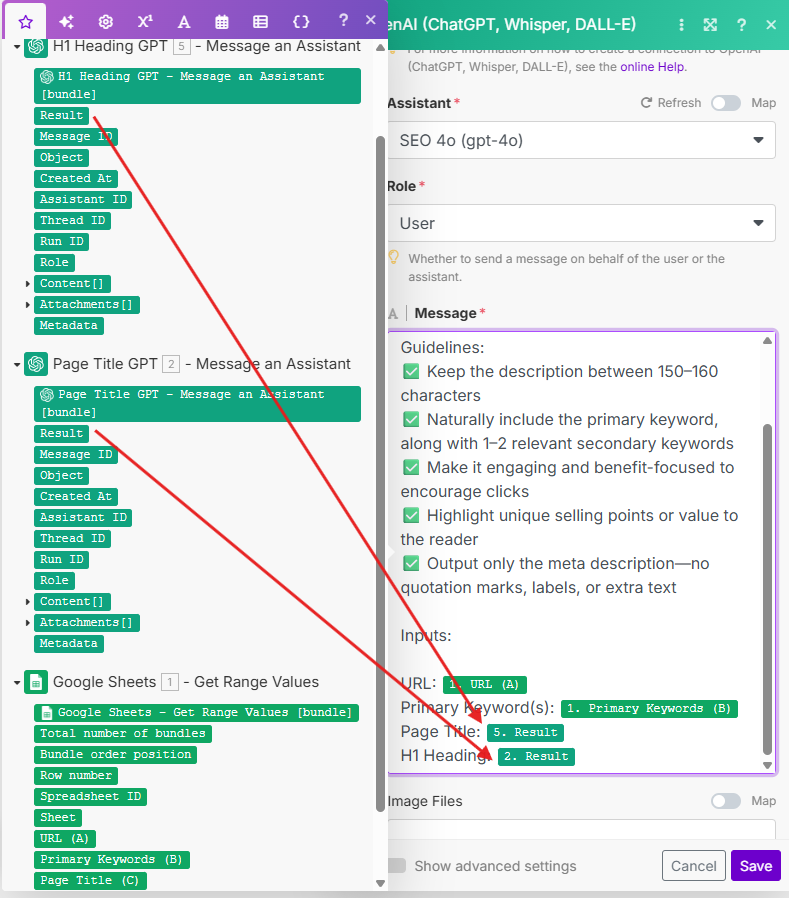
Update Your Spreadsheet with the Metadata
To complete the workflow, we have to link automation to Google Sheets again. The instructions are quite simple and by now should feel familiar:
- Add a new module and find Google Sheets.
- This time, choose “Update a Row.”
- Connect the spreadsheet you’re using to generate metadata to this module.
- In the “Row Number” field, choose the “Row number“ from the Google Sheets module.
- Under “Values”, select the respective metadata results for their corresponding fields.
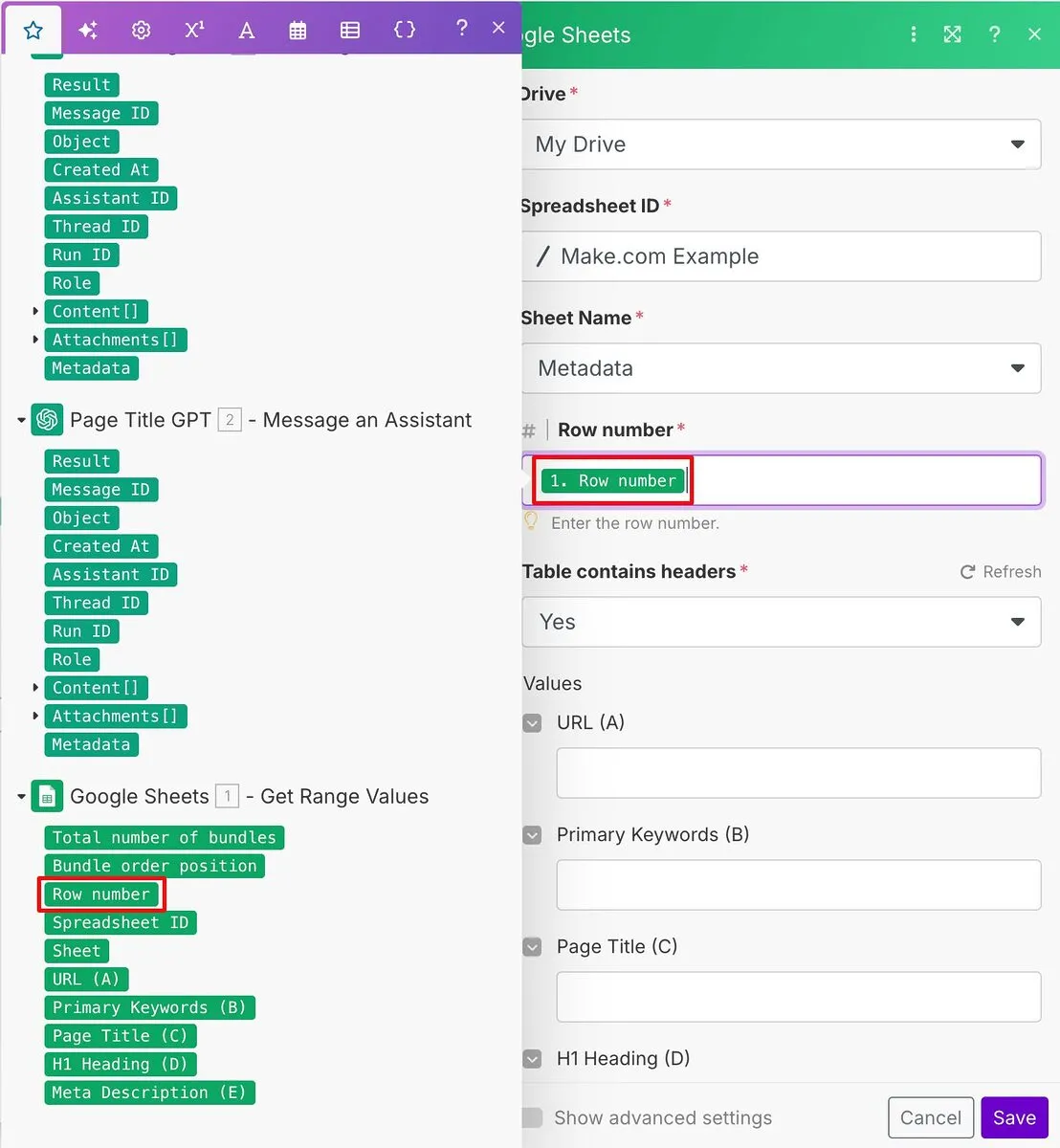
- Click save and run the automated workflow. You should end up with a similar result:

If the results aren’t exactly what you expected, try adapting the prompt for better outcomes.
Execute an AI-Driven Blogger Outreach Campaign
The final core pillar of our campaign was automating blogger outreach. Earning high-quality, niche-relevant backlinks is essential for SEO, but it’s also one of the most time-consuming tasks. While manual outreach works for a handful of targets, scaling the process requires automation.
By leveraging AI to personalize and streamline our outreach, we were able to secure valuable backlinks efficiently and at scale.
Make.com is a great tool for generating blog posts and metadata, but it can also be used for other purposes.
Prospecting Relevant Domains with Ahrefs
Before setting your automation workflow, you first need to source information from Ahrefs. Here is an effective way to find relevant websites related to your niche:
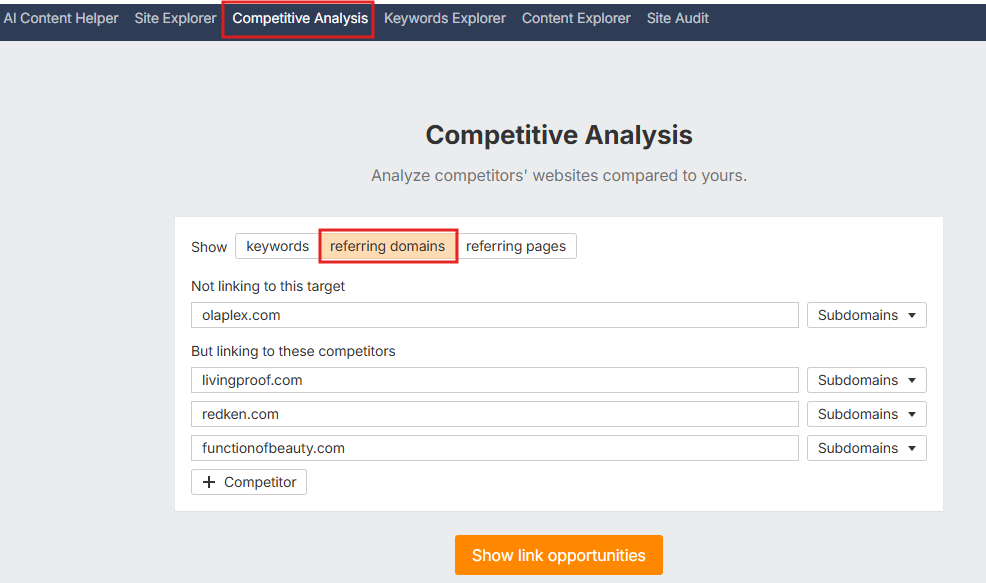
- Go to Competitive Analysis features and set it to “referring domain.”
- If you're unsure who your main competitors are, a quick Google search of your product’s primary keyword will reveal the top-ranking sites you’re up against.
- Fill out the fields with your website and competitors, then click on “Show link opportunities.”
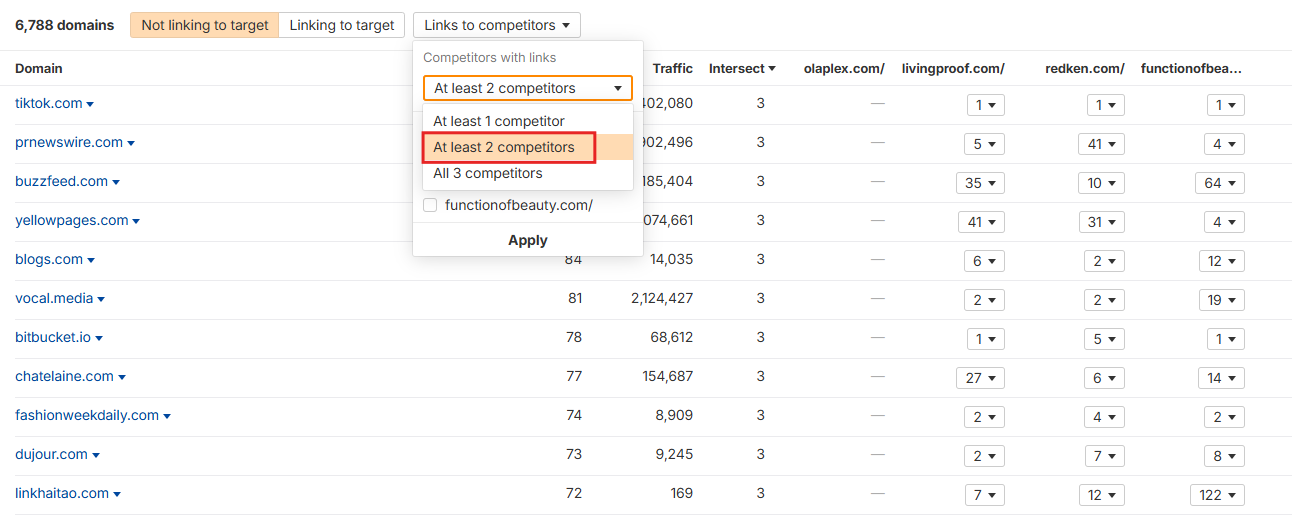
- Filter the backlinks by selecting to show the same results from “At least 2 competitors.”
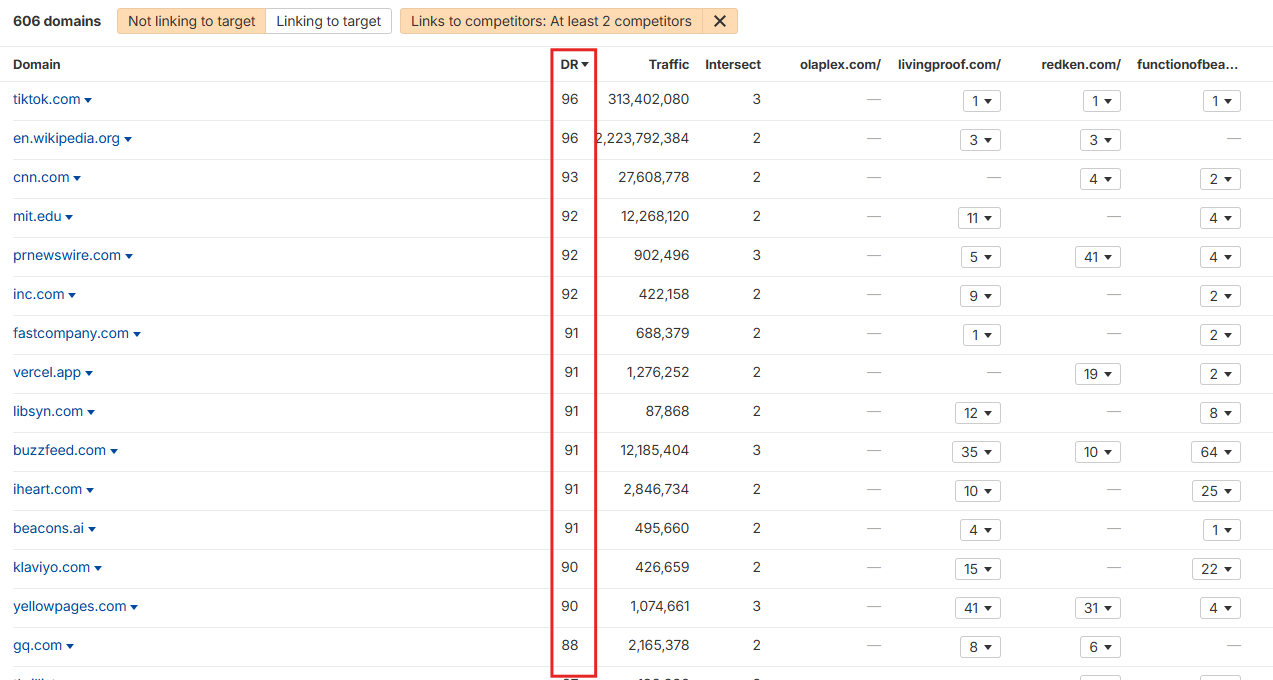
- Sort the results by DR (Domain Rating) from high to low to see the most valuable links.
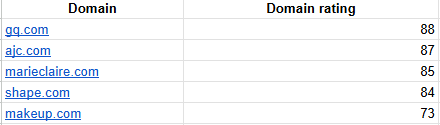
- Export the list and remove all columns except the Domain and DR.
- Narrow down the results by:
- Filtering for websites with a Domain Rating (DR) of 25 or higher to ensure authority.
- Keeping only sites that are topically relevant to your niche for better backlink quality.
Get Their Contact Details
The next step is to find the contact information of the websites you kept in our spreadsheet:
- Shortlist the sites you want to contact.
- Check their website for emails or a contact form.
- Use Hunter.io to find emails (free for up to 25 searches/month).
- Search by domain using the “Find email by company” option.
- Add contacts (name + email) to your spreadsheet.
Crafting a Pitch with Make.com
Once again, we’re turning to Make.com. But this time, you will be using it for crafting multiple outreach pitches that grab attention and resonate with bloggers. It’s perfect for scaling your outreach efficiently. Here’s how to get started:
- Add new column (“Outreach Pitch”) to your spreadsheet with Domains and Domain Ratings.
- Go to Make.com, create a new Scenario, and select Google Sheets.
- Choose “Get Range Values” and set a connection.
- For the “Range,” type the cells with data (e.g., A2:E6).

- Click on “Yes” for “Table contains headers,” and type the cells with headers (e.g., A1:F1)
- Save the module and create a new module with OpenAI.
- Select “Message an Assistant” and connect your OpenAI account by creating a secret key if you haven’t done it yet.
- Copy the API key and paste it into the field “API Key” in Make.com. Click on “Save” to continue setting your AI assistant.
- Select an “Assistant.” We recommend choosing “gpt-4o.”
- Keep the “Role” as User.
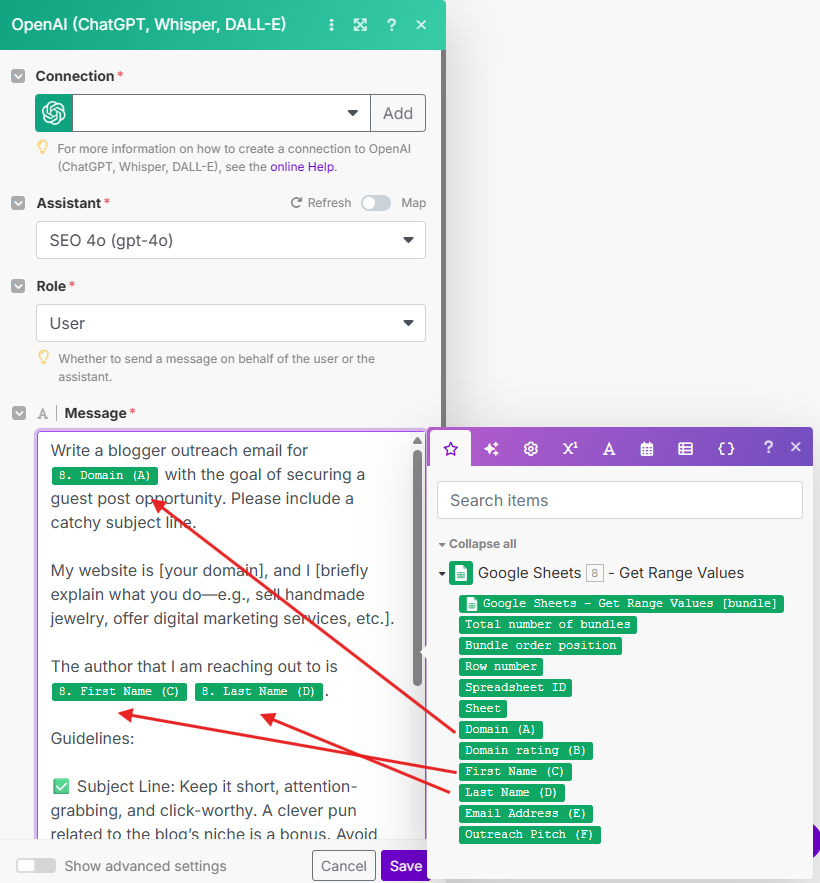
- Add your prompt to the “Message“ as an example shown below:
Write a blogger outreach email for [domain] with the goal of securing a guest post opportunity. Please include a catchy subject line.
My website is [your domain], and I [briefly explain what you do—e.g., sell handmade jewelry, offer digital marketing services, etc.].
The author that I am reaching out to is [first name] [last name].
Guidelines:
- Subject Line: Keep it short, attention-grabbing, and click-worthy. A clever pun related to the blog’s niche is a bonus. Avoid directly stating it’s about guest posting.
- Opening: Start with a touch of humor or a fun comment relevant to their site to break the ice.
- Value First: Emphasize what’s in it for them, not just what you want.
- Topic Ideas: Suggest 3 potential guest post titles, each with a brief explanation of why your content will bring unique value.
- Length: Keep the entire message under 200 words.
- Tone: Address them by first name and keep the message friendly, but professional.
- No emojis.
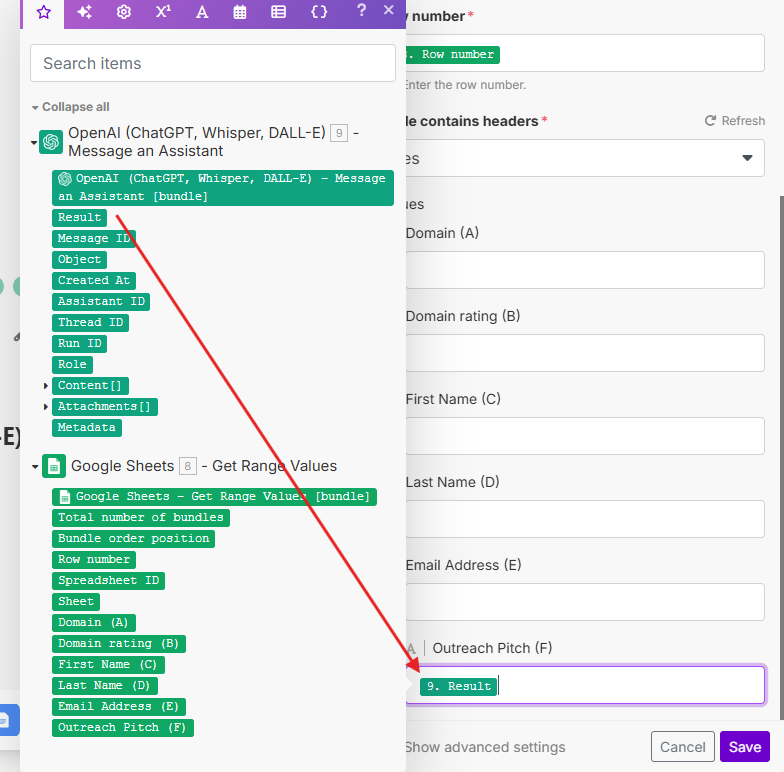
- Save the module and create a new module with Google Sheets, but this time, select “Update a Row.”
- Connect the module to your spreadsheet for outreach pitches and select “Row number.”
- Add the “Result” (from the OpenAI) to the field “Outreach Pitch(F).”
- Save the module and run the workflow. Your results should be similar to:
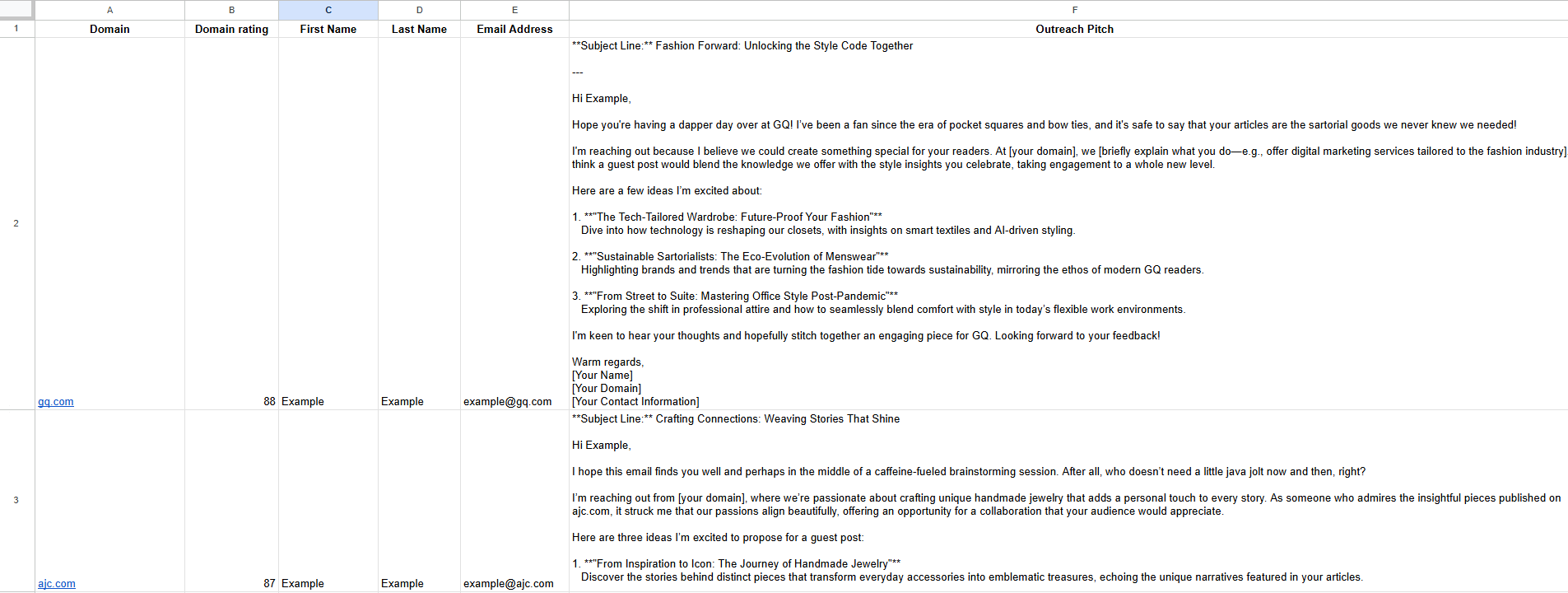
Tweaking the prompt is key; small changes can significantly improve the relevance and quality of the results you get.